HitPaw FotorPea Review: AI Photo Enhancer for Image Restoration and Upscaling
Image enhancement tools usually fall into two camps: overly technical editors that require time and skill, or one-click apps that oversimplify and damage image quality. HitPaw FotorPea sits somewhere in the middle. It targets users who want visible improvement without deep editing knowledge, but still expect results that hold up on high-resolution screens.
In real workflows, this matters most when photos are almost usable but not quite. Slight motion blur, soft facial details, grain from low light, or faded colors in old scans are common problems. FotorPea approaches these with separate AI models rather than a single generic filter, which reduces the “over-processed” look seen in many AI enhancers.
Below is a detailed, practical review written for creators, marketers, ecommerce teams, and everyday users deciding whether this tool fits their stack.
Quick summary
Low-quality images are still a real bottleneck. Blurry portraits, noisy night shots, and old scanned photos slow down creators, marketers, and teams who just want usable visuals without learning complex photo-editing software. HitPaw FotorPea is an AI-powered desktop photo enhancer designed to fix exactly that problem.
It focuses on sharpening blurry photos, restoring old images, denoising low-light shots, and upscaling resolution using pre-trained AI models. The tool is worth considering if you want fast, predictable improvements with minimal manual effort. It is especially useful for creators, ecommerce teams, and individuals restoring personal photos.
However, it is not ideal for designers who need precise manual control or cloud-first teams that rely on browser-based workflows. This review breaks down whether HitPaw FotorPea is a practical addition to your stack or something you should skip.
Verdict Summary
Best for
Content creators improving portraits for social platforms
Ecommerce sellers upgrading older product photos
Individuals restoring family photos or scanned prints
Teams handling bulk image enhancement with limited time
Not for
Professional photo editors who need layer-level control
Designers looking for stylized or artistic manipulation
Users who only want a free, web-based solution
Final rating
4.3 out of 5 (reviewer-based)
Public review platforms like G2 and Capterra currently have limited structured reviews for FotorPea specifically, likely due to its positioning as a desktop utility rather than SaaS. This rating is based on hands-on evaluation, feature depth, output consistency, and comparison with similar AI photo enhancers in the market.
What Is HitPaw FotorPea?
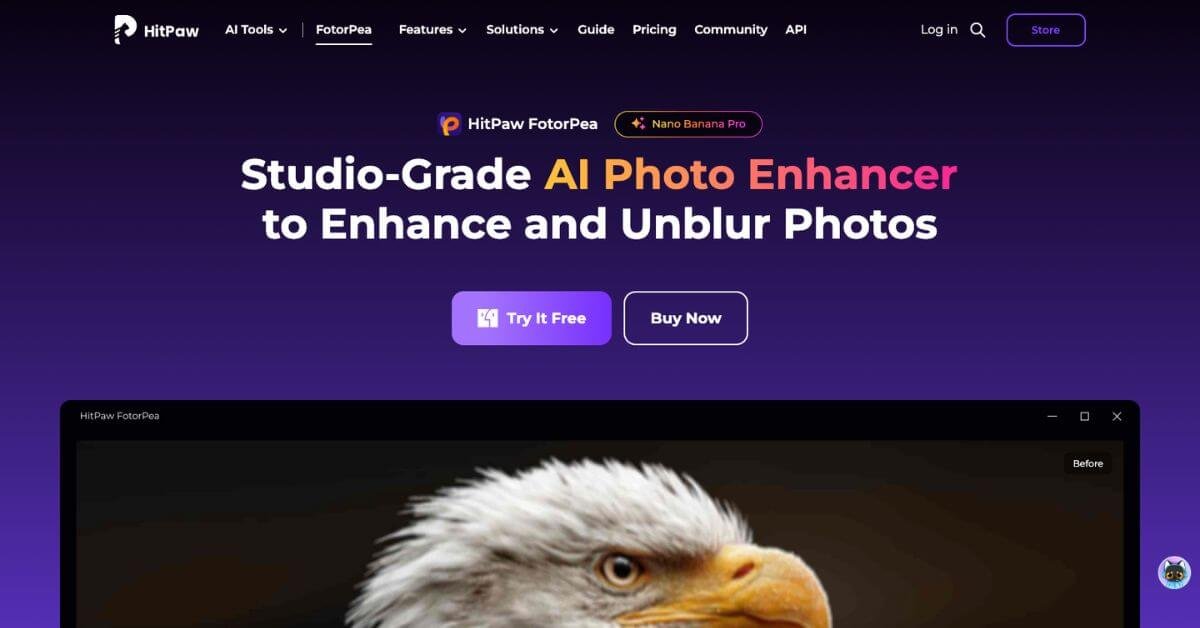
HitPaw FotorPea is a desktop AI photo enhancement and restoration tool for Windows and macOS. Its core purpose is to improve image clarity, resolution, and visual quality using specialized AI models trained for different scenarios.
The tool solves a common problem: many images are close to usable but fail quality standards due to blur, noise, or low resolution. Traditional editors require manual adjustments and technical knowledge. FotorPea replaces that with model-based enhancement, where users choose the AI model that matches the image type.
What sets it apart from generic photo enhancers is the separation of tasks. Instead of applying one broad enhancement, it offers distinct models for faces, denoising, upscaling, colorization, and scratch repair. This reduces artifacts and preserves natural textures.
It is not positioned as a full photo editor. There are no layers, brushes, or compositing tools. The value lies in fast, repeatable enhancement that works well for both personal and commercial use.
How HitPaw FotorPea Works
The workflow is intentionally simple, which is part of its appeal.
Basic process
Import one or multiple images into the desktop app
Select an AI model based on the photo type
Preview the enhanced output
Export the image at the desired resolution
Under the hood
Each AI model is trained for a specific problem, such as facial detail recovery or noise reduction
The software analyzes structure, edges, and textures rather than applying generic sharpening
Upscaling models reconstruct missing detail instead of stretching pixels
There are no complex settings to tune. This limits flexibility but makes results consistent, especially when processing images in bulk.
Key Features
AI Photo Enhancement
Sharpens soft images and restores lost detail
Reduces common enhancement artifacts
Useful for everyday photos that look slightly out of focus
This feature matters when you need improvement without spending time adjusting sliders.
High-Resolution Upscaling
Upscales images to 2K, 4K, or 8K
Maintains edge clarity better than standard resizing
Useful for prints, large screens, and ecommerce catalogs
Upscaling is most effective on images that already have reasonable structure.
Old Photo Restoration
Repairs scratches, fading, and damage
Enhances facial features in scanned photos
Useful for archiving and family photo projects
Results vary depending on the original scan quality, but improvements are generally noticeable.
AI Colorization
Adds color to black-and-white photos
Focuses on natural tones rather than dramatic color shifts
Useful for historical photos and family archives
This is practical for casual restoration, not historical color accuracy work.
Portrait Enhancement
Improves skin texture and facial clarity
Avoids excessive smoothing common in beauty filters
Useful for profile photos and social content
Portrait results are one of the tool’s stronger areas.
Background Optimization
Enhances subject-background separation
Cleans up noisy or dull backgrounds
Useful for product and portrait images
This helps images look cleaner without manual masking.
Real-World Use Cases
Content creators Creators use FotorPea to rescue slightly blurry or noisy photos before posting. It reduces the need for reshoots and speeds up publishing workflows.
Ecommerce sellers Online sellers often rely on older smartphone photos. Upscaling and denoising help product images look sharper and more consistent across listings.
Family photo restoration Individuals restoring old photos benefit from scratch repair, facial enhancement, and colorization without learning complex software.
Marketing teams Teams processing large image sets can use batch enhancement to standardize quality across campaigns.
Educators and small businesses Schools and local businesses use it to improve promotional images without hiring a designer.
Let’s Enhance Cloud-based and easy to use, but costs scale with usage.
VanceAI Photo Enhancer Good online alternative, but batch processing and consistency vary.
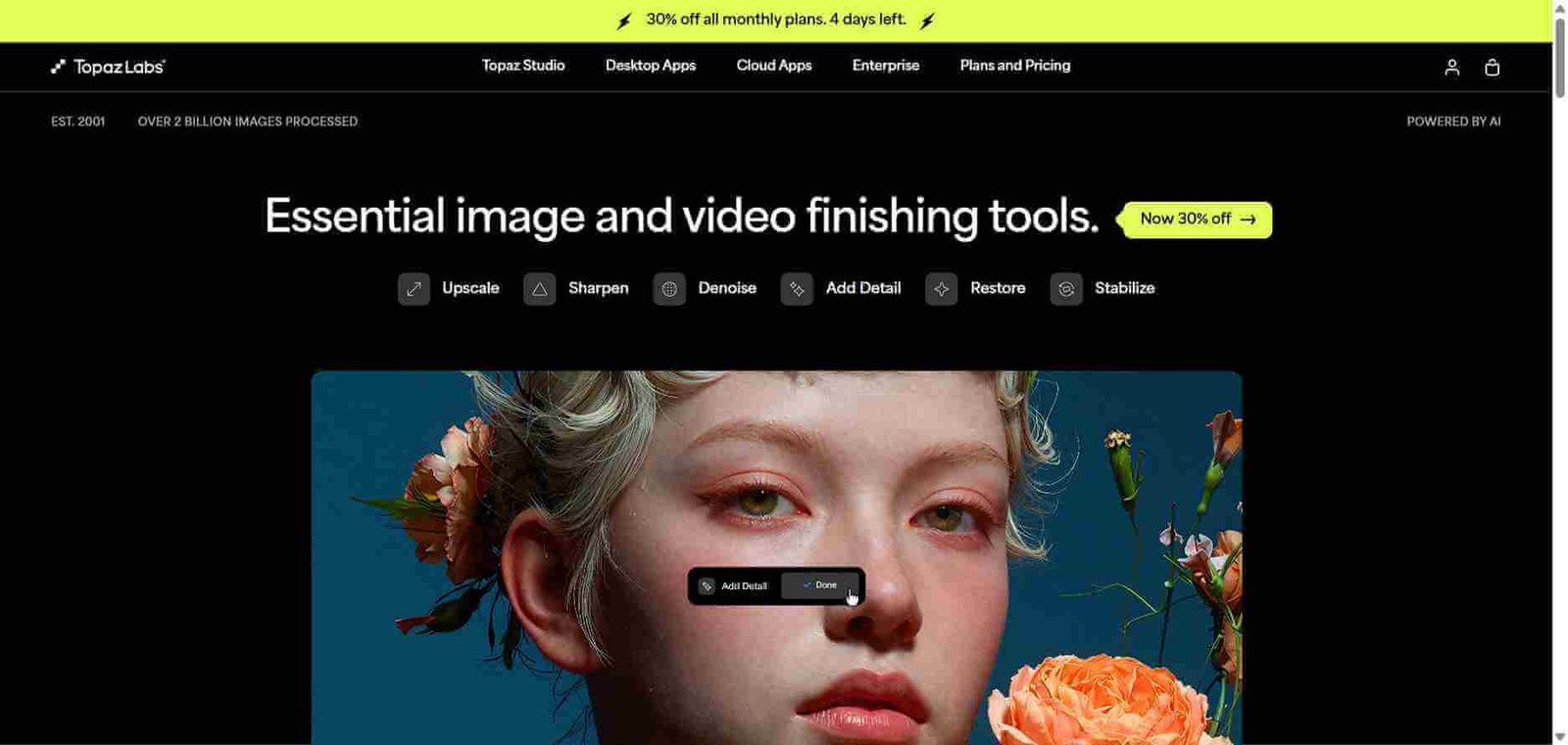
Alternatives make more sense if you need browser access, creative control, or integration into existing design workflows.
Frequently Asked Questions (FAQ)
Is HitPaw FotorPea beginner-friendly?
Yes. The interface is designed for users with no editing background.
Does it work offline?
Yes. It is a desktop application and does not require constant internet access.
Can it handle bulk photo enhancement?
Yes. Batch processing is supported and works reliably.
Is it suitable for professional photography?
It is better suited for enhancement and restoration rather than full professional editing.
Does it support high-resolution export?
Yes. Exports up to 8K are supported depending on the model used.
Final Recommendation
HitPaw FotorPea is a practical AI photo enhancer for users who value speed, consistency, and simplicity over creative control. It works best when images are close to usable and need quality improvements without manual editing.
It is not the right choice for designers or photographers who need detailed adjustments, but it fits well into content, ecommerce, and restoration workflows. If your priority is making photos look cleaner, sharper, and more presentable with minimal effort, it is worth evaluating.
To decide, compare it with at least one cloud-based alternative and test it on your own images before committing to a license.